
Tips
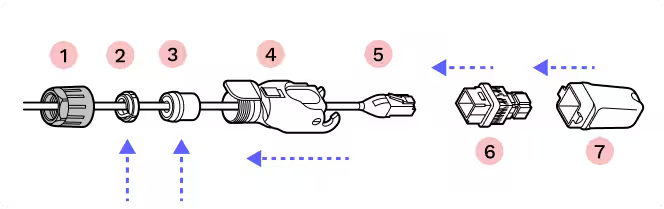
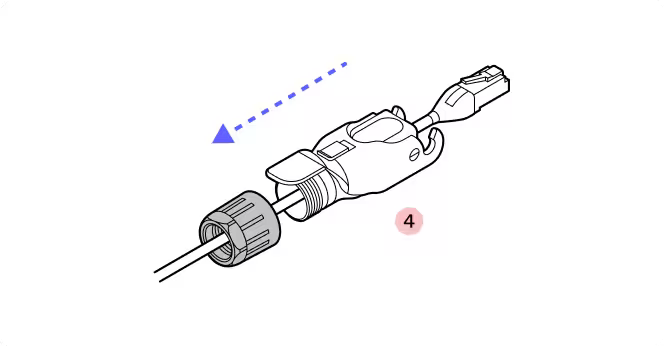
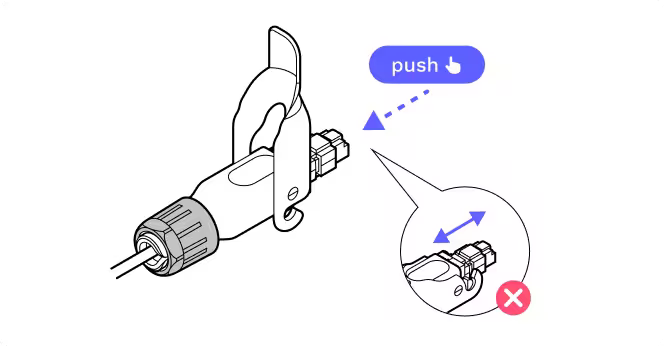
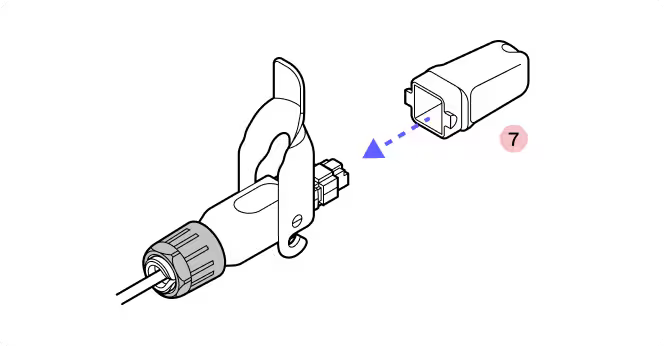
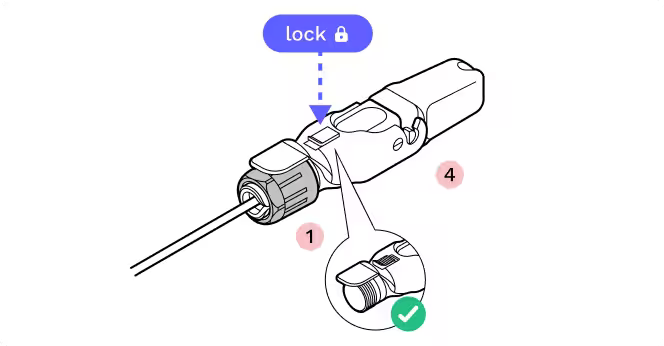
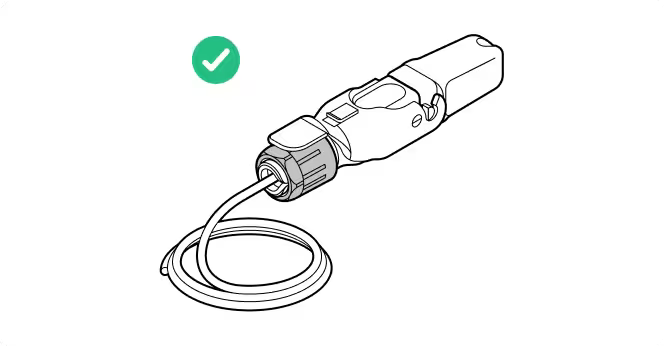
- Check RJ45 depth and nut indication. Double check the RJ45 connector depth using the marking line on the dust cap and make sure the plastic nut is firmly tightened so the cable does not slip. On the Octis cap, use the arrow to verify the length of the visible RJ45 connector (11 millimeters).
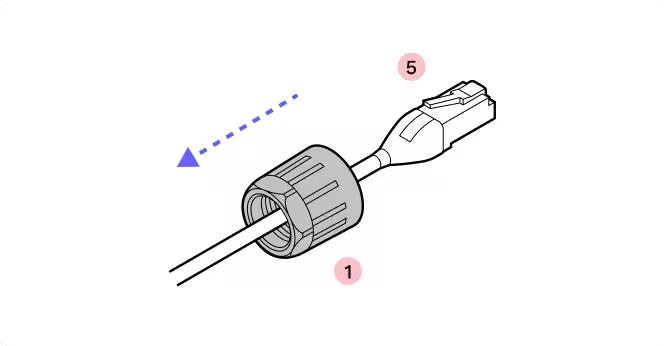
- Black plastic nut. Use parts from the WOC accessory box. The black plastic nut indicates an Octis RJ45 connector.
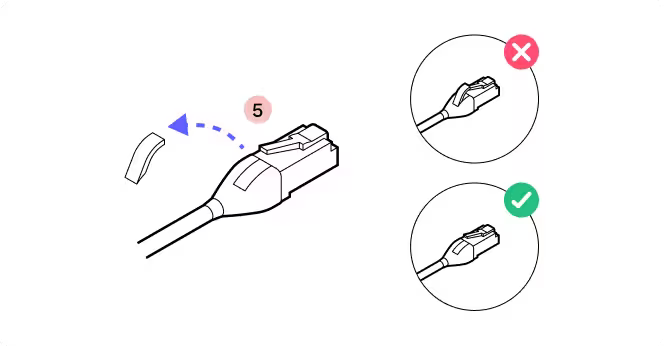
- Modify ethernet cable. Modify the boot on the Ethernet patch cable: the RJ-45 connector must be bare, with no rubber boot, rubber lock tab protector, or other protrusions. Use care to avoid damaging the cable or the Octis RJ45 connector.
- Gently press down to check. To confirm the RJ45 connector is securely locked in place, apply finger pressure.

Do not remove the dust caps from the WOC terminal until you are ready to plug in the Octis connector.
1.
2.
3.
4.
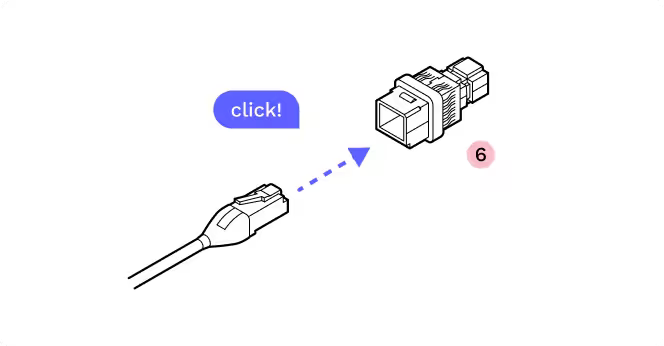
5.
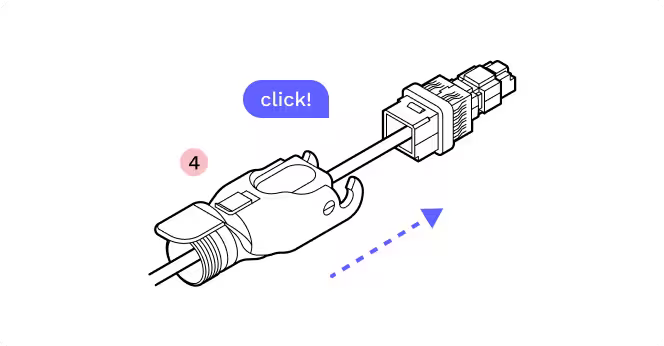
6.
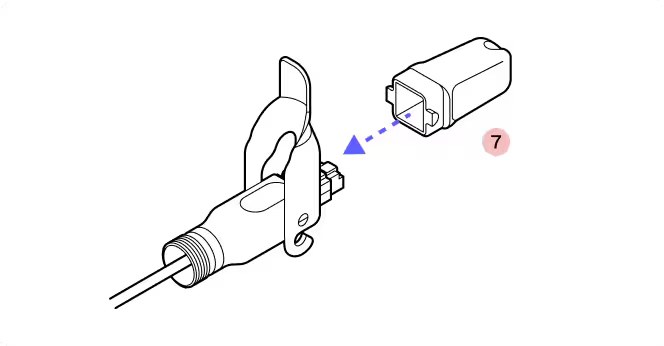
7.
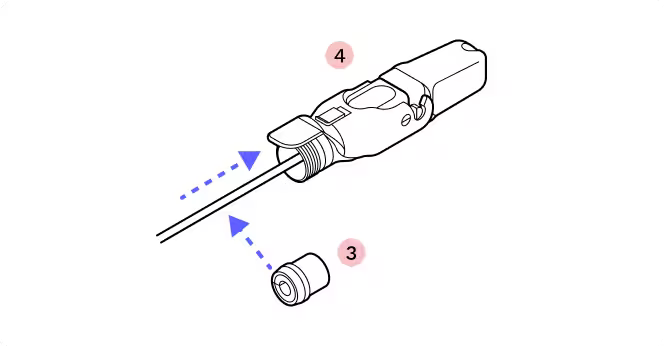
8.
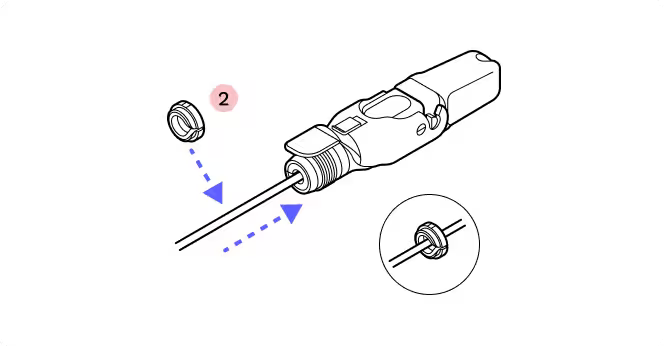
9.
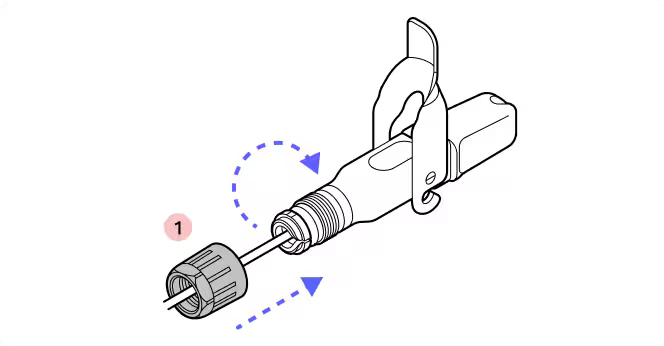
10.
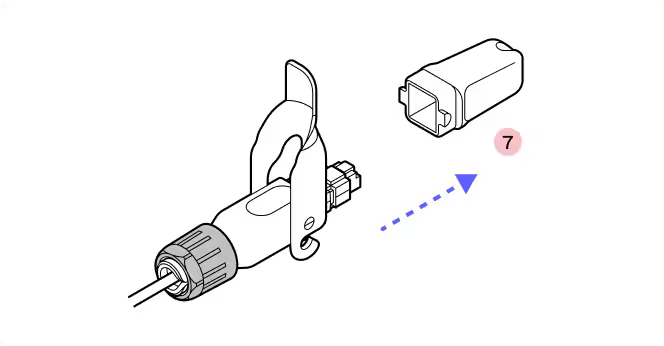
11.
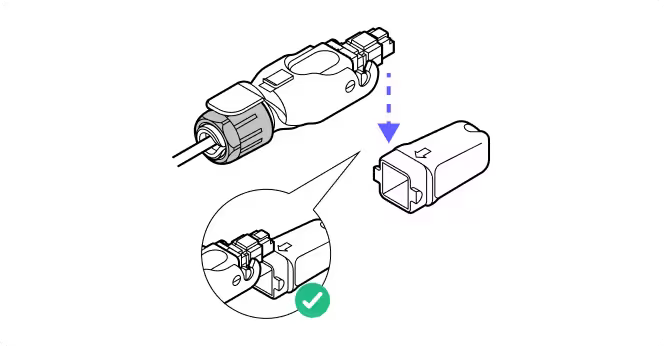
12.
13.
14.
15.
5.3 Octis DC connector assembly
Parts
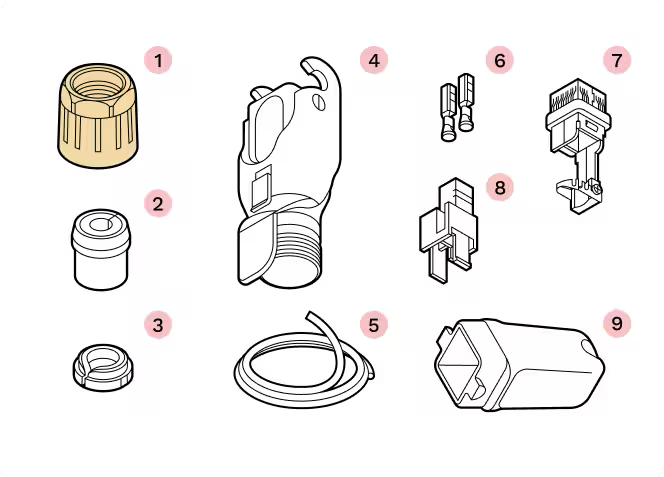
- 1
Yellow gland nut
- 2
Split rubber gland
- 3
Tightening cone
- 4
Housing
- 5
DC cable
- 6
Crimp contacts
- 7
Cable holder
- 8
Plastic housing
- 9
Plug cap
Required tools
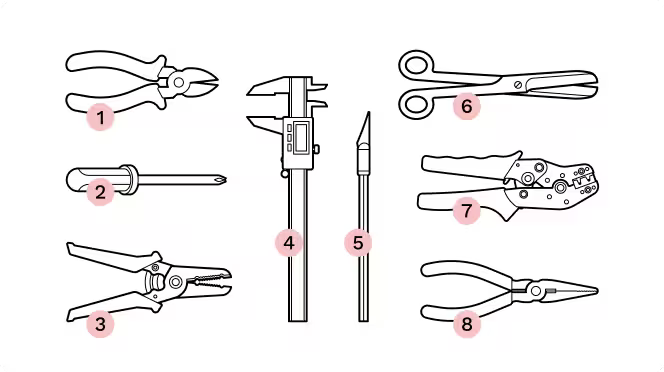
- 1
Wire cutters
- 2
Screwdriver
- 3
Digital calipers
- 4
X-Acto knife
- 5
Scissors
- 6
Wire strippers
- 7
Wire crimping tool
- 8
Pliers (alternative to Wire crimping tool)
Tips
- Yellow plastic nut. Use parts from the WOC accessory box. The yellow plastic nut indicates the Octis DC connector.
- Be accurate in measurements. Wire stripping is 37mm, conductor stripping is 5mm. Try on the crimp contacts to match.
- Double check the orientation. For this connector, it is very important to observe the correct orientation for the cable holder and plastic housing. Look at the arrow tips on the case and check the instructions twice before attaching the contacts.
Do not remove the dust caps from the WOC terminal until you are ready to plug in the Octis connector.
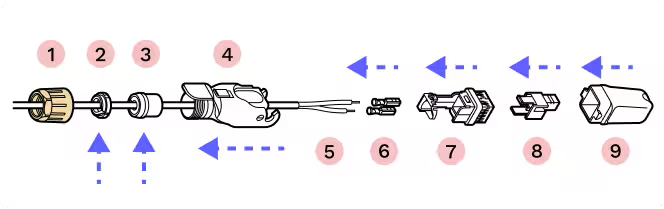
1.
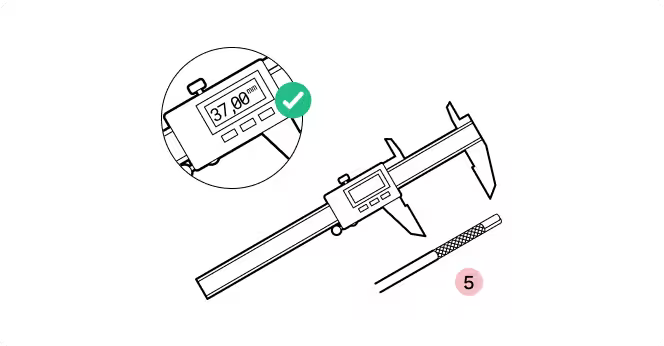
2.
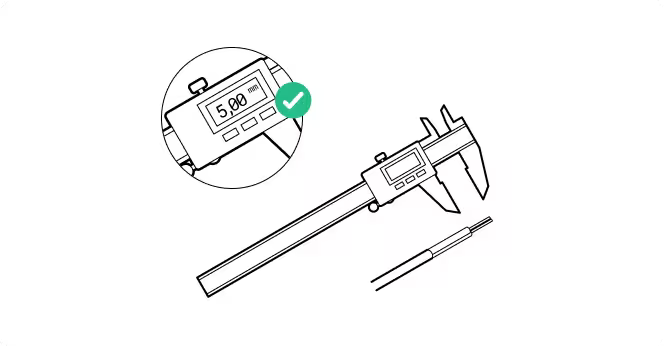
3.
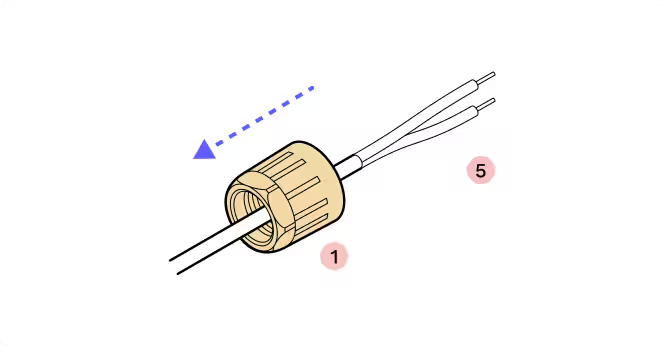
4.
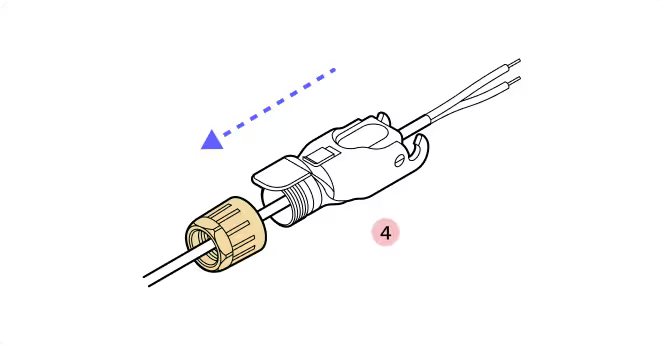
5.
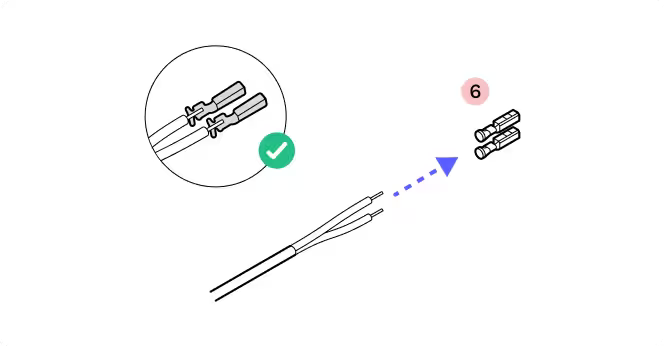
6.
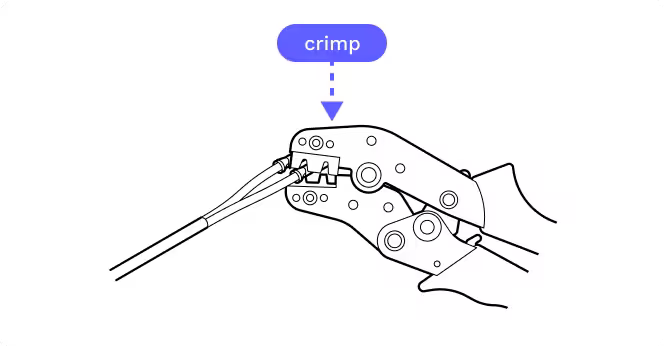
7.
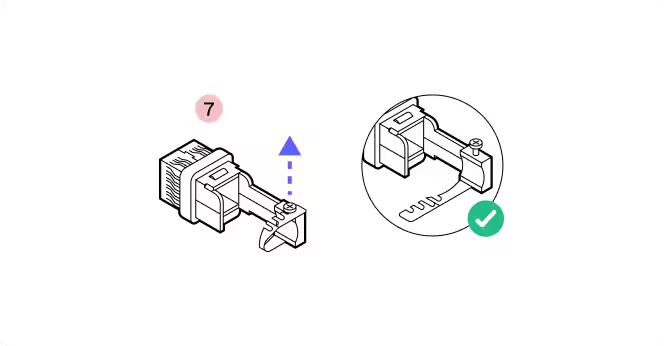
8.
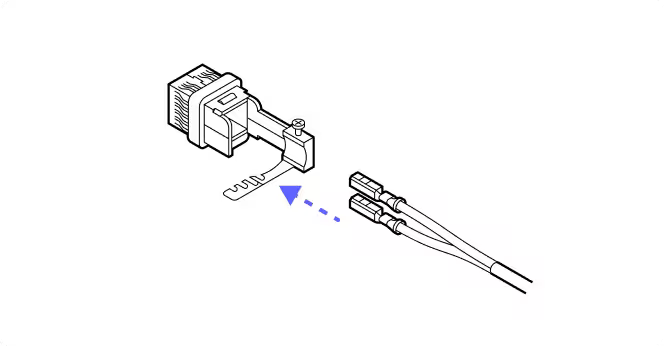
9.
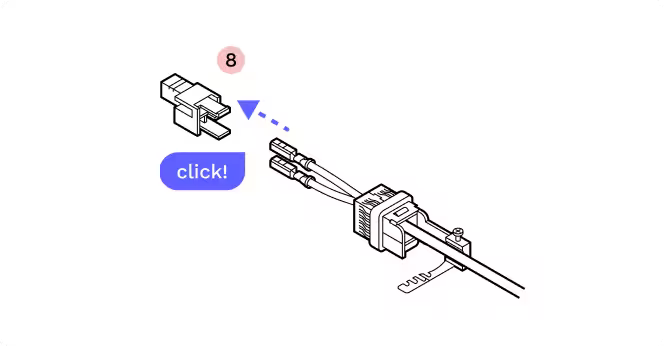
10.
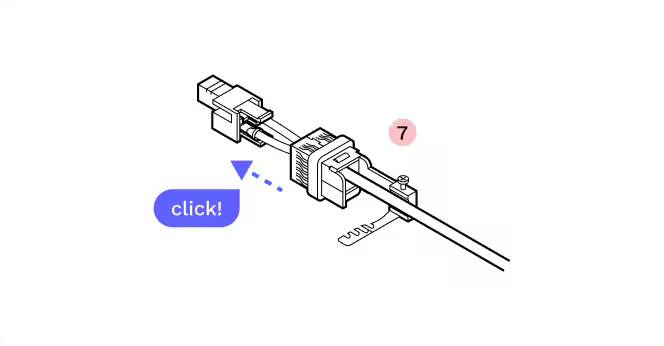
11.
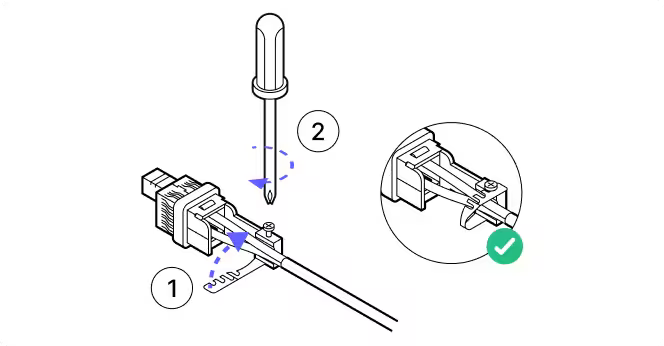
12.
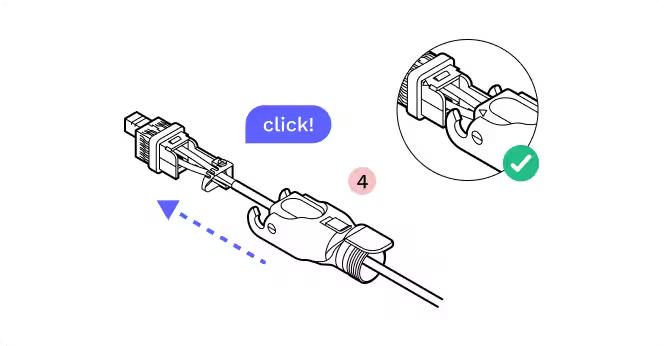
13.
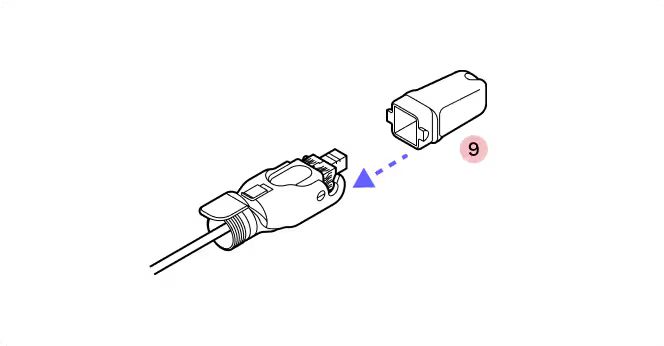
14.
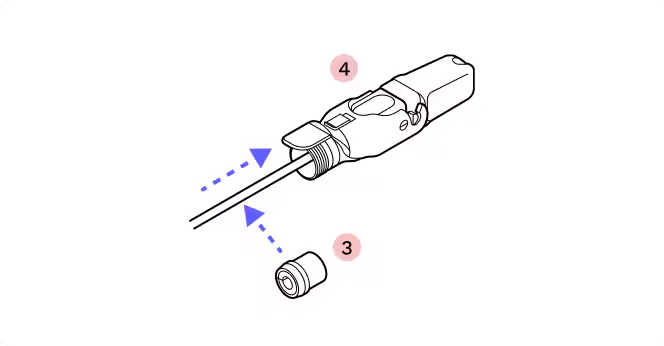
15.
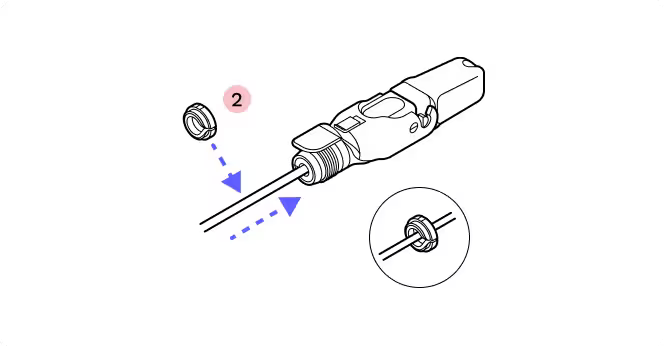
16.
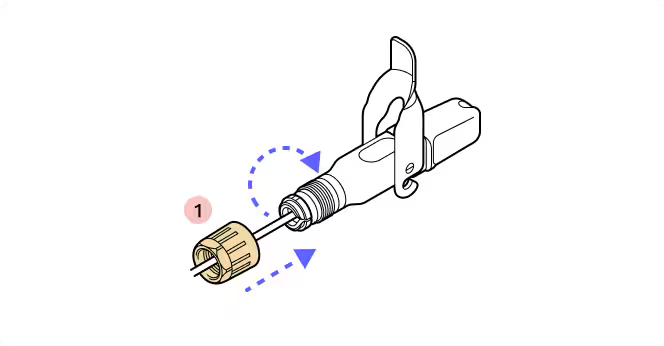
17.
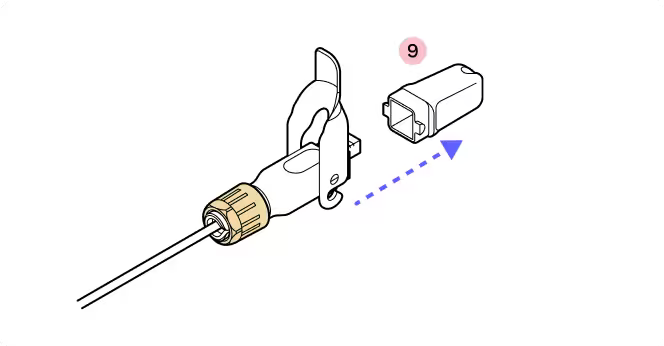
18.
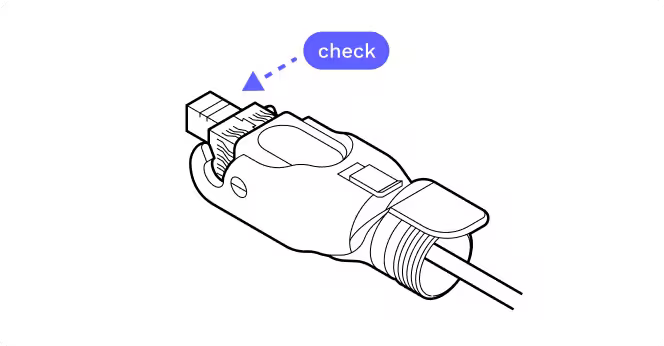
19.
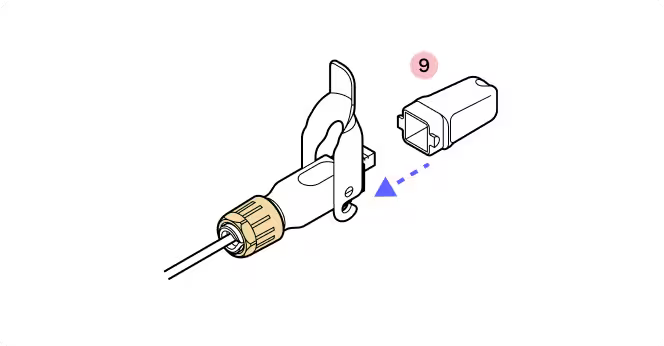
20.
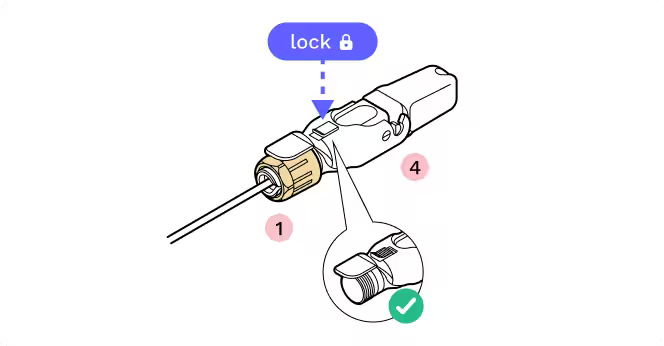
21.
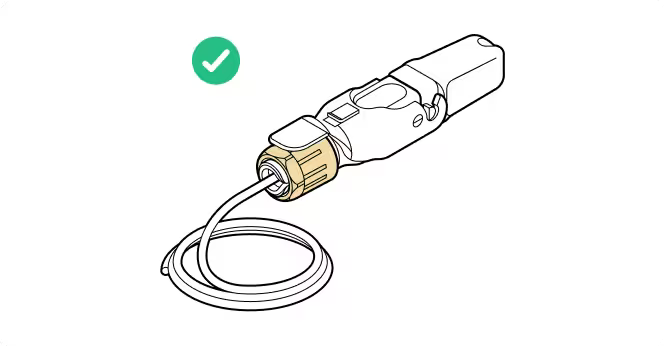
5.4 WOC provisioning
Parts
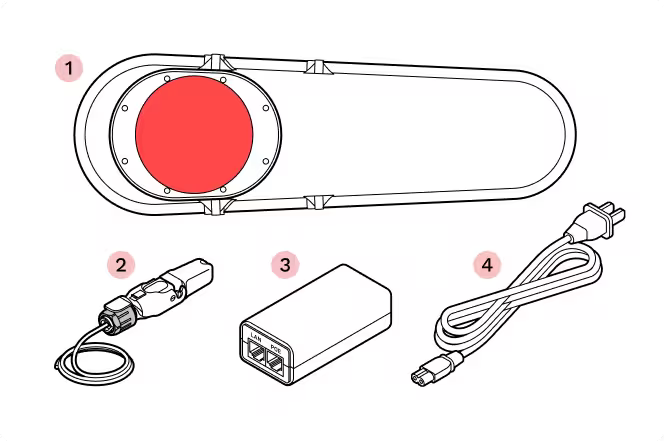
- 1
WOC terminal
- 2
RJ45 pigtail
- 3
PoE injector
- 4
Power cord
Required tools
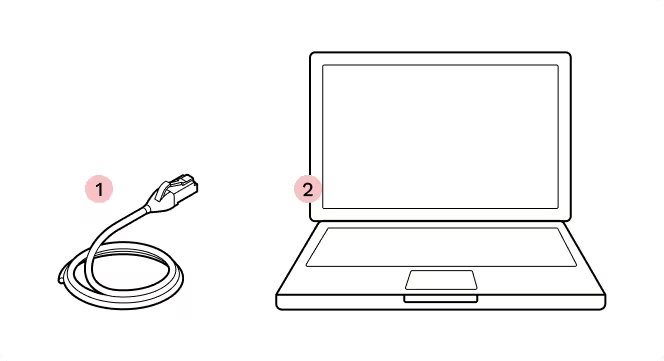
- 1
Ethernet cable
- 2
Laptop with Taara Prism
Tips
- Install Taara Prism. Install Taara Prism on the management computer. Download the latest Taara Prism from Taara University.
- Connect the power last. Verify the POE injector is unpowered when inserting the Octis RJ45 connector.
- Prepare a second Ethernet patch cable. A second Ethernet patch cable will be required for the provisioning process (not included in the WOC accessory box).
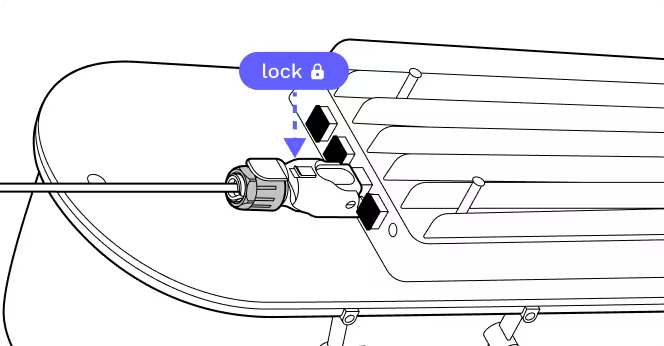
- Grab the cable, not the connector. Insert the RJ45 Octis connector into the WOC terminal by pushing from the cable when inserting.

- Do not remove the protective cover from the glass.
- Do not power the terminal before completing this step.
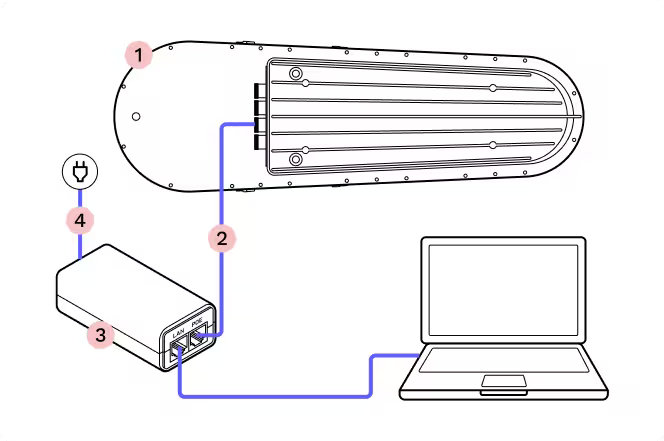
1.
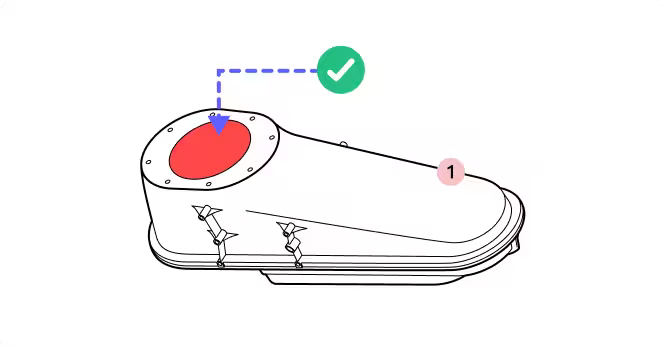
2.
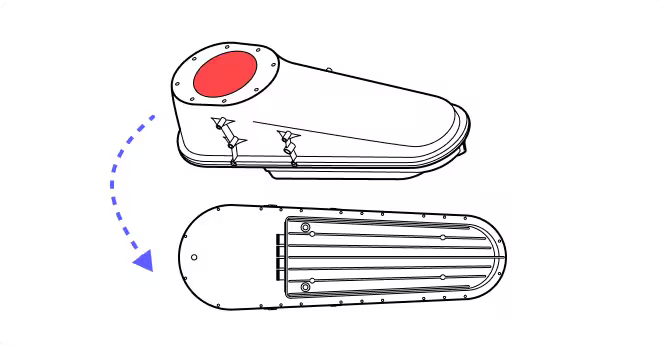
3.
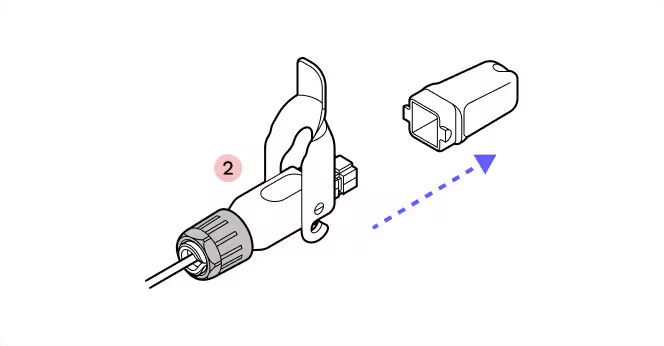
4.
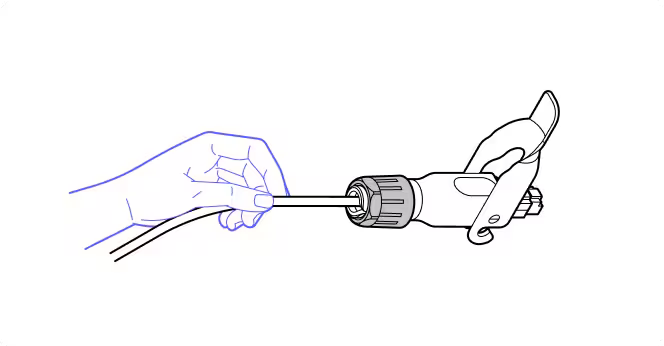
Grab the cable
5.
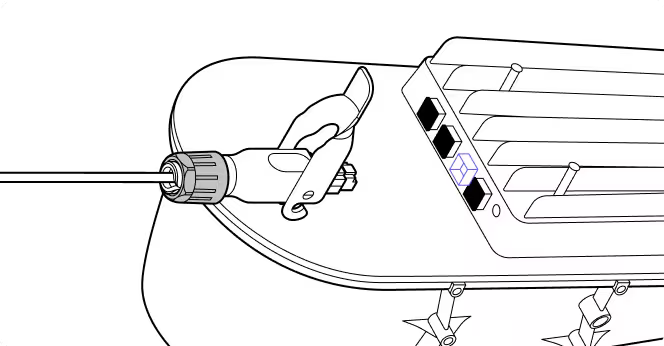
6.
7.
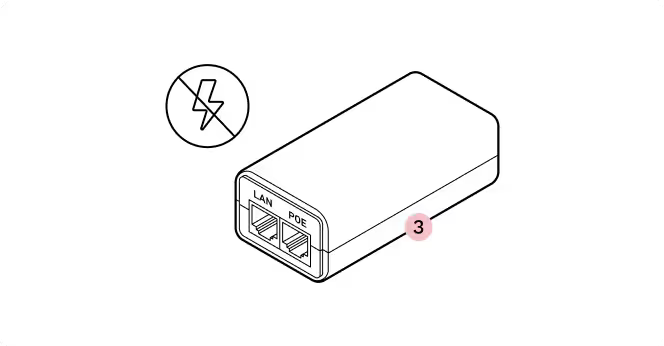
Do not power
8.
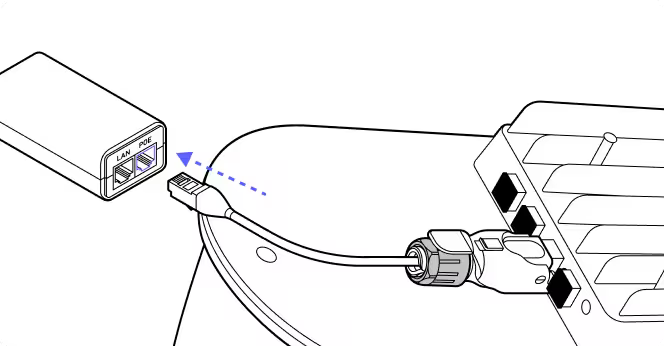
9.
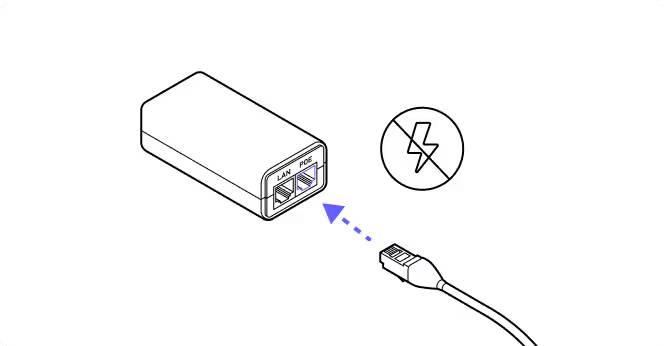
RJ45 to POE
10.
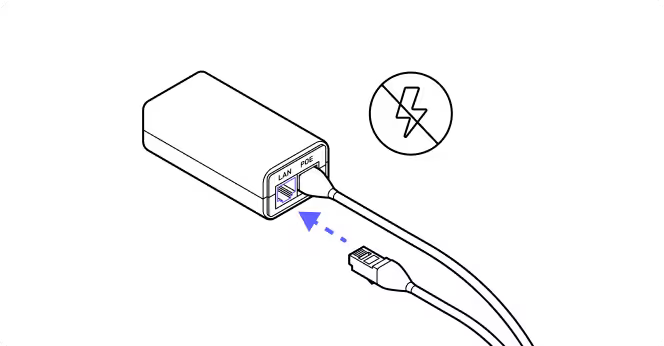
Ethernet to LAN
11.
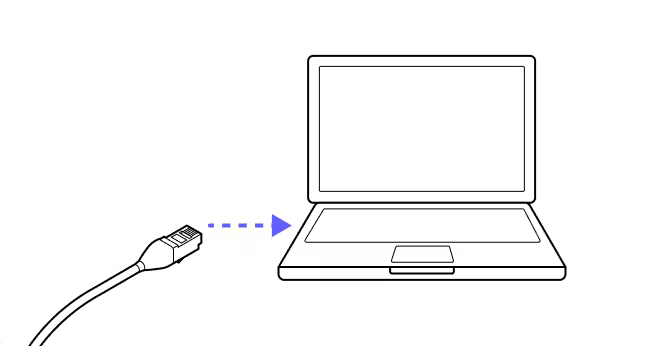
Ethernet cable
12.
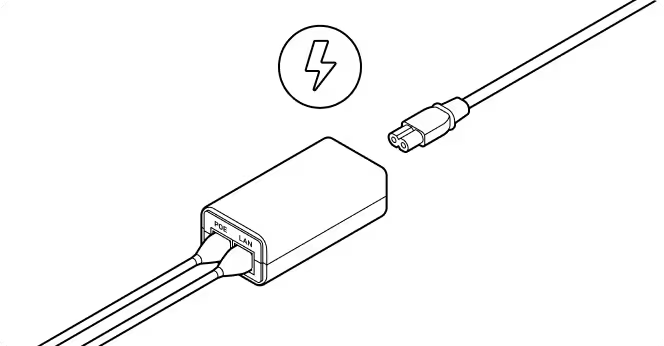
Connect to power
13.

Wait for 45 sec
14.

Run Taara Prism